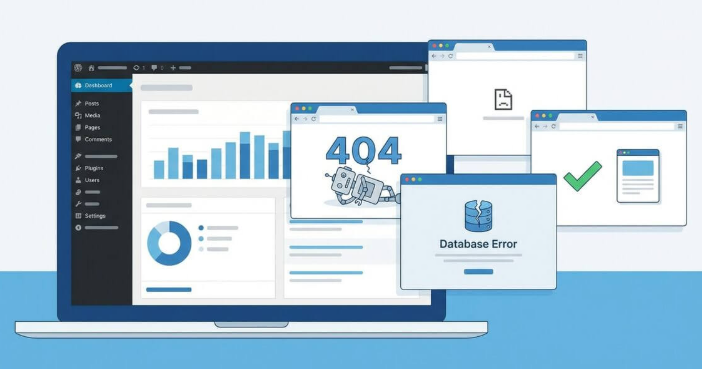
The fastest safe fix for a failed WordPress update is to restore a clean database state, disable the broken plugin, and only then retry the change. WP Reset helps because it gives you controlled recovery tools instead of forcing you to guess which plugin, option, or update wrecked the site. That matters on a platform used by over 43% of all websites, where one bad update can break a store, blog, or booking page in minutes.
TLDR: WP Reset can rescue a WordPress site after a failed update by rolling back configuration changes, disabling faulty plugins, and restoring snapshots when available. For example, if a plugin update changes 40 database options and your checkout page starts throwing errors, a snapshot can return the site to its previous working state in seconds. A small agency managing 25 client sites could save hours each month by using snapshots before updates instead of manually hunting bugs one by one. Use WP Reset with backups, not instead of them.
Why WordPress Updates Fail So Often
WordPress updates usually work. Until they do not. Then you get a blank page, a fatal error, a locked admin panel, or a plugin settings screen that looks like someone shook the database and walked away.
Most failures happen for simple reasons:
- Plugin conflicts after one plugin changes how it loads scripts or hooks.
- Theme incompatibility with a newer WordPress or PHP version.
- Interrupted updates caused by timeouts, low memory, or server limits.
- Corrupted settings after a plugin migration or failed import.
- Cache issues showing old files with new database entries.
Honestly, it feels like the most annoying failures come from plugins that update “successfully” but leave settings half-changed. The dashboard loads. The front end does not. No obvious error. Just a site that worked 30 seconds ago and now acts like it has never met PHP before.
What WP Reset Actually Does
WP Reset is a recovery and reset toolkit for WordPress. Its best use is not wiping sites for fun. Its real value is giving admins a way to recover from messy changes without manually deleting database rows or renaming plugin folders over FTP at midnight.
Depending on your setup and plan, WP Reset can help with:
- Database snapshots before risky updates or plugin tests.
- Plugin and theme reset options to remove broken configurations.
- Emergency recovery access if the admin area is blocked.
- Bulk cleanup tools for transients, uploads, themes, plugins, and custom tables.
- Site reset options for staging, testing, or rebuilding a damaged install.
The key feature for troubleshooting is the snapshot. A snapshot records the database state at a specific moment. If a plugin update damages configuration, you can compare or restore the previous state. That is far cleaner than guessing which option inside wp_options changed.
Start With a Backup, Even If You Use WP Reset
WP Reset is powerful, but it is not a full replacement for off-site backups. This matters. A database snapshot can reverse database changes, but it may not restore uploaded files, server-level changes, or custom code edits unless your chosen tool and settings include them.
Before you touch a broken site, do this:
- Create a full backup of files and database through your host or backup plugin.
- Download a copy if the site is business critical.
- Check PHP error logs for fatal errors.
- Disable caching while testing fixes.
- Record what changed: plugin update, theme update, PHP version, or WordPress core update.
Expect to waste time if you skip this. A reset tool can fix the wrong thing very quickly if you panic-click.
Fixing a Failed Plugin Update With WP Reset
If your site broke right after a plugin update, treat that plugin as the prime suspect. Do not update five more plugins “just to see.” That usually makes the mess wider.
Use this order:
- Open WP Reset if the admin dashboard still works.
- Check available snapshots from before the update.
- Compare changes if your version supports comparison.
- Restore the snapshot if the broken plugin changed critical database settings.
- Deactivate the plugin after restoring, before trying another update.
- Clear cache from WordPress, server cache, CDN, and browser.
If the dashboard is dead, use your host file manager or FTP to disable the plugin first. Rename its folder in wp-content/plugins. For example, change seo-plugin to seo-plugin-disabled. Then reload the site. If it comes back, you have found the problem.
After access returns, use WP Reset to clean up the plugin’s leftovers. Some plugins leave custom tables, transients, cron jobs, and option rows behind. That clutter can keep causing errors even after deactivation.
Recovering From Broken Plugin Configuration
Bad configuration can be worse than a bad update. A security plugin can lock out admins. A caching plugin can break CSS. A redirect plugin can send every page to the homepage. A membership plugin can hide public content from everyone.
WP Reset helps by letting you return settings to a known working point. If you created a snapshot before changing configuration, restore it. If not, use targeted cleanup tools instead of a full reset.
Good recovery targets include:
- Transients, which may store stale plugin data.
- Plugin options, when you know which plugin caused the issue.
- Custom database tables, but only after confirming they belong to the broken plugin.
- Cron events created by plugins that run scheduled tasks.
Be careful with plugins that store orders, form entries, users, bookings, or subscriptions. Resetting their tables can delete business data. If a WooCommerce, LMS, donation, or membership plugin is involved, make a full backup first and test on staging when possible.
When to Use a Full Site Reset
A full reset should be the last option for a live site. It is useful for test sites, staging sites, abandoned builds, or development installs that became too messy to trust.
A full reset can help when:
- The site is still in development.
- You imported demo content that broke layouts.
- The database is filled with test plugin data.
- You want a clean install without reinstalling WordPress manually.
Do not use a full reset on a live production site unless you clearly understand what will be removed. Read every confirmation screen. Then read it again. WP Reset is built to prevent careless clicks, but no plugin can protect you from rushing through warnings.
A Practical Recovery Workflow
Here is a reliable process for future updates:
- Update on staging first. Copy the live site and test changes there.
- Create a WP Reset snapshot before updating plugins, themes, or WordPress core.
- Update one item at a time. Test the site after each change.
- Check key pages: homepage, login, checkout, contact forms, search, and account pages.
- Wait a few minutes and check logs. Some plugin errors appear only after cron runs.
- Push to live only after the test site behaves normally.
For large sites, write down a simple rollback rule. For example: “If checkout fails, restore snapshot within five minutes and postpone the update.” That removes debate during stress.
Common Mistakes to Avoid
- Resetting too much. Start small. Disable, compare, restore, then clean.
- Ignoring hosting limits. Low memory and short execution times can break updates.
- Updating everything at once. It saves three minutes until it costs three hours.
- Testing while cache is active. Cached errors can trick you.
- Assuming snapshots are backups. Keep off-site backups too.
Final Recovery Advice
WP Reset is most useful before disaster, not after it. Install it on staging sites. Create snapshots before changes. Keep full backups outside WordPress. Then, when an update breaks a plugin or corrupts settings, you have options that do not involve blind database edits.
Failed updates are annoying, but they do not have to turn into a lost afternoon. With a snapshot, a backup, and a calm order of operations, you can restore the site, isolate the faulty plugin, and retry the update on your terms.